macOS
Habits that make every Mac app easier to teach.
These instructions are about the operating system. They apply whether you record with Apple’s toolbar, QuickTime, or a third-party editor. No product download is required to finish this page.
Use the screenshot toolbar
Press Command-Shift-5. A bar appears at the bottom of the screen. The left controls capture stills. The right controls record the whole screen or a selected portion. Options lets you pick a microphone, a save location, a timer, and whether the pointer is visible.
Choose still or motion
A still is enough for a single dialog. Record only when the order of clicks is the lesson.
Select a portion when you can
Full-screen recordings include every notification and every extra display. Drag a rectangle around the window that matters.
Set a save folder you can find
Desktop fills up. A folder named Captures inside Documents is easier to empty later.
Stop from the menu bar
A stop control appears while you record. Click it, then open the file before you send it. The toolbar does not capture system audio; narrate into the selected microphone or add sound later.
Grant Screen Recording to an app
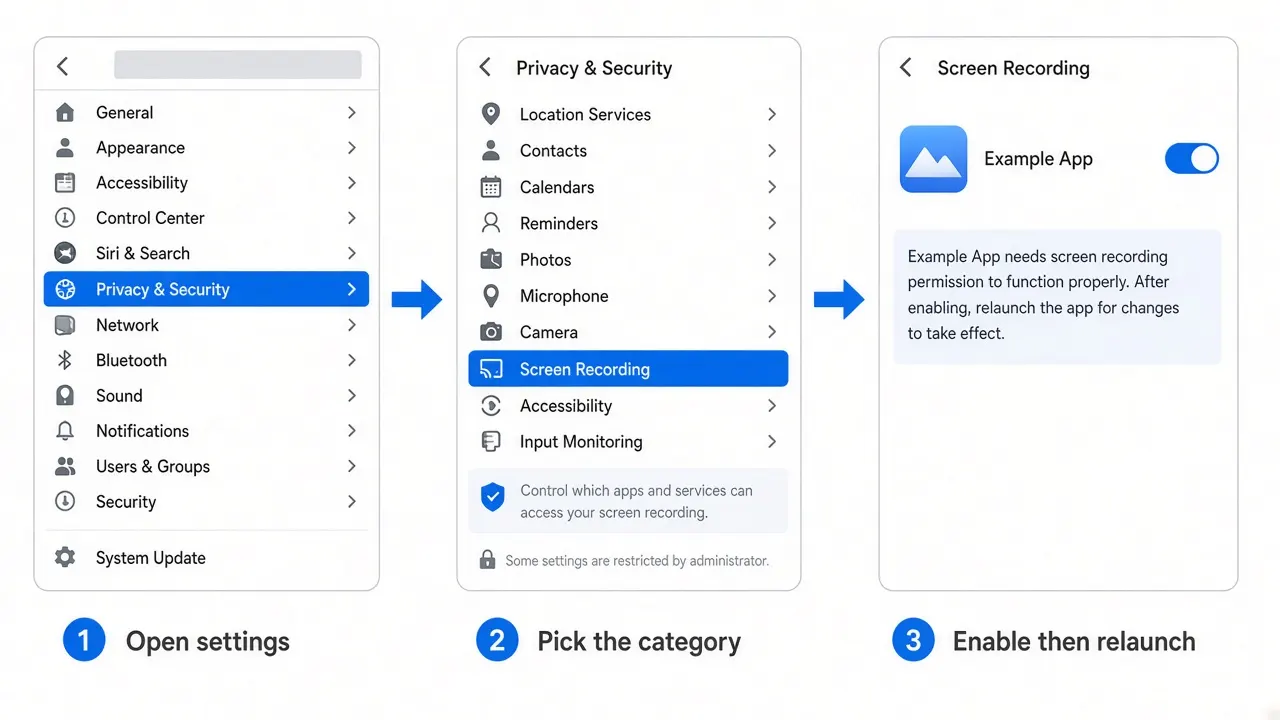
Any app that reads the screen needs an explicit grant. Apple stores that grant in System Settings → Privacy & Security. The row may be labeled Screen Recording or Screen & System Audio Recording, depending on your macOS version.
Open the correct pane
Apple menu → System Settings → Privacy & Security, then the Screen Recording item.
Enable the app
If it is missing, use the add control and choose it from Applications. Do not enable apps you do not recognize.
Quit and reopen the app
macOS often applies this right when the process starts. Closing a window is not the same as quitting. Use the app menu → Quit, or the Dock.
After a major macOS update, walk this list again. System updates can reset a switch without deleting the app.
Grant Microphone access
Apple’s support pages are plain: if an app cannot hear you, check Privacy & Security → Microphone and turn that app on. Then:
- Open System Settings → Sound → Input and confirm the device you meant to use.
- Watch the input meter while you speak. A still meter means the wrong device or a muted hardware switch.
- On a laptop, the orange control-center indicator shows when an app is using the mic. If it never appears, the app never received the grant.
Prepare the desktop
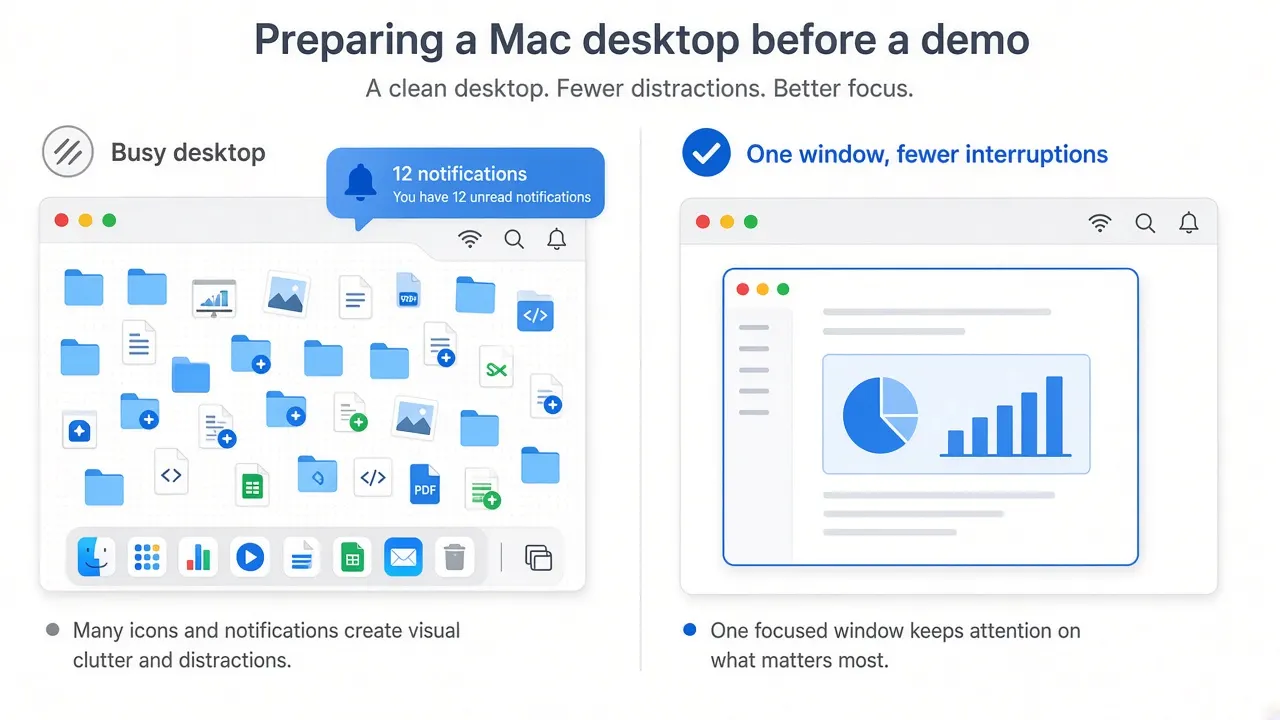
Hide files
In Finder, you can keep work in folders instead of on the desktop. Some recorders can hide icons during a take; do not rely on that for private filenames.
Pause interruptions
Turn on a Focus from Control Center so calendar banners do not land on a client demo. Close chat apps if their badges sit in the menu bar you are about to show.
Open one window
Quit browsers with personal tabs. Use a clean user account if the lesson is public and your everyday Dock is a biography.
Set a display scale you can read later
System Settings → Displays. A scaled resolution that looks handsome on a 16-inch notebook can become unreadably small in a 1080p export. Before a series of lessons, pick one resolution and stay there. If you teach a web app, enlarge the browser to 110% rather than recording a 5K desktop and hoping the encode stays sharp.
Night Shift and True Tone change color. Turn them off when the lesson is about a brand color or a design file.
Share the file without painting yourself into a corner
- AirDrop is the fastest path to another Apple device on the same network.
- Mail will reject a large MP4. Compress first, or use a file link from a service you already trust.
- Name the file with the date and the topic, not “Screen Recording 1.” Future you will not remember the take.
- Watch the clip once on a phone. If a button is unreadable there, re-export or re-record with a tighter region.
When an app stalls
Force quit from Apple menu → Force Quit, or open Activity Monitor and sort by CPU. A recorder that sits at the top of the list after you stopped a take may still be encoding. Wait before you force it if a progress window is visible. If the machine is hot and fans are high during a simple toolbar recording, close other apps and try a smaller region.
From here you can open the catalog, studyone polished recorder, orcompare tools by job.