Compare
Pick a recorder for the file you need this afternoon.
This page does not rank products. It maps a job to a tool that is known to do that job. Prices and version numbers change; confirm them on each developer’s site before you pay.
Start from the job
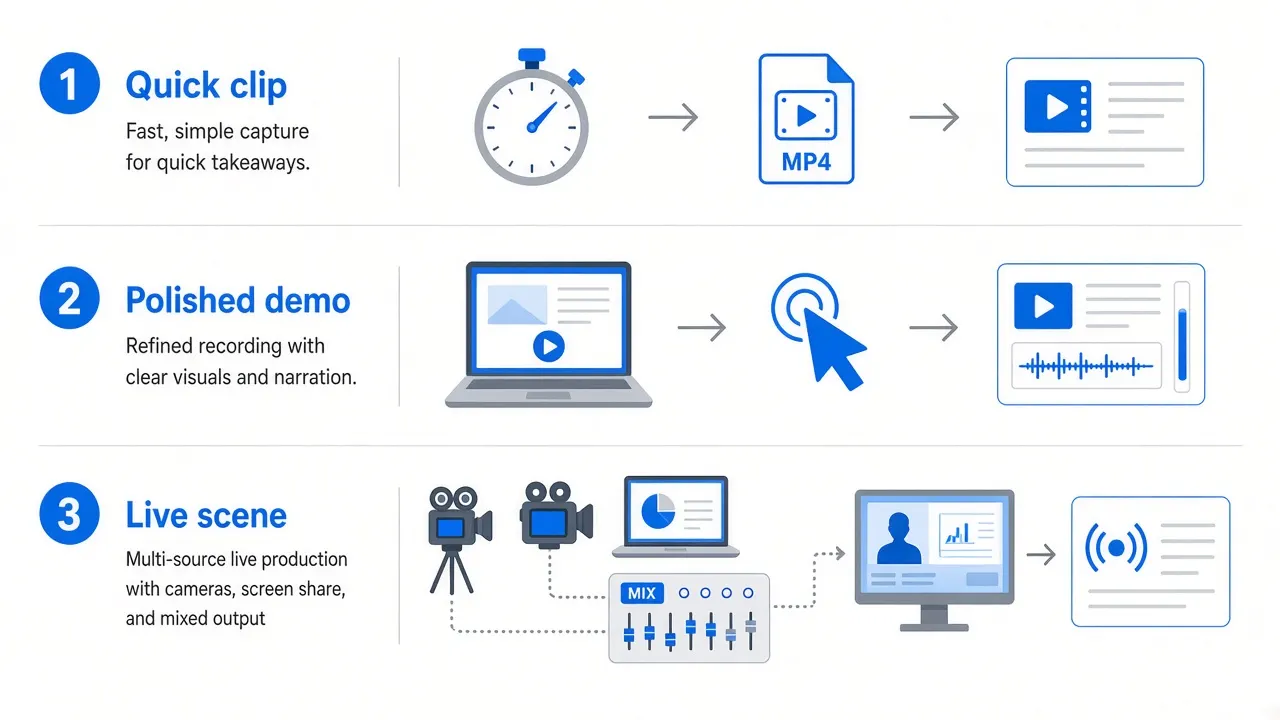
| Job | Usually enough | Often too much |
|---|---|---|
| Show a bug in Slack | Screenshot toolbar or CleanShot X | A zoom-heavy editor |
| Public product tour | A recorder with post-take framing | A raw OBS file with no edit |
| Live stream | OBS Studio | A tutorial editor |
| Tiny GIF for docs | Kap or a short GIF export | 4K MP4 |
| No extra software | ⌘⇧5 or QuickTime | Any paid app |
Built-in screenshot toolbar
Press Command-Shift-5. Apple’s toolbar records the whole screen or a portion of it and can include the microphone. It does not capture system audio. There is no timeline, no automatic zoom, and no camera layout. The file lands on the desktop or in the location you set. Use it when the clip is evidence, not a lesson. A full walk-through of the toolbar is in macOS software guides.
QuickTime Player
File → New Screen Recording opens Apple’s older recorder. It is still useful for a simple local movie, and QuickTime can trim a clip afterward. You get none of the finishing tools described on the Screen Studiofeatures page. Choose QuickTime when you already live in that app and the audience will accept a plain frame.
OBS Studio
OBS is a free, open-source scene mixer used on Mac, Windows, and Linux. You add sources — displays, windows, cameras, devices — and mix them live. It can record and stream. It does not finish a tutorial for you. There is no built-in automatic zoom pass. The interface assumes you will learn scenes, an encoder, and an audio mixer.
Choose OBS when the event happens once, in real time, with more than one source on screen. Do not choose it because it is free if you only needed a one-window MP4.
CleanShot X
CleanShot X is a Mac screenshot and recording utility. Its public feature list includes region or window capture, microphone and system audio, click highlights, hiding desktop icons, annotations, GIF export, and cloud links. A later version added a studio-style recording mode with zooms and cursor treatment. The product is still, at heart, a capture tool you keep in the menu bar — not a long-form editor.
Choose it if you already take dozens of stills a day and want recording in the same place. Compare current plans on the developer’s site; we will not quote a price here.
Kap
Kap is an open-source Mac recorder aimed at short clips. It can export GIF, MP4, WebM, and APNG. The interface is small. It is a poor fit for narration-heavy courses, and system-audio support has historically been limited or absent depending on version. The project has also seen long gaps between releases. Use it for a documentation GIF if it still runs on your macOS version; keep a second tool for anything you must trust next year.
When the original tool still fits
Stay with Screen Studio when the file is a demo or a tutorial and you want zooms, cursor cleanup, and camera layouts after the take — and you are willing to meet the Mac-only requirements. Read theoverview andsetup pages before you install. Download only from theOfficial Screen Studio website.
If you are undecided, run the same thirty-second TextEdit test in the built-in toolbar and in one paid app. The difference you can see in those two files is the only comparison that matters for your audience.