Setup
Install once, grant rights, then record a thirty-second test.
A first launch fails most often because the Mac is on an older system, the wrong chip build was downloaded, or Screen Recording was toggled without a full quit. Work the list in order.
What you need
- A Mac you can restart if a permission change requires it
- An administrator account, or someone who can approve Privacy & Security changes
- The official installer, not a copy from a file-sharing site
- Ten minutes without a meeting in the same room, so you can test a microphone
Check the Mac
Official documentation (as of this writing) asks for macOS Ventura 13.1 or later, at least 8 GB of memory, and either Apple silicon or a listed Intel model: MacBook Pro 2018 or later, or MacBook Air 2020 or later. Apple silicon is recommended.
Open About This Mac
Click the Apple menu in the top-left corner and choose About This Mac.
Read three lines
Note the macOS version, whether the chip says Apple or Intel, and the memory amount.
Compare, then stop if you miss a line
If the system is older than 13.1, update macOS first or pick another recorder fromthe alternatives guide. Do not force an install and then blame the editor for a black frame.
Install
Download the matching build
The official install page serves one button when the browser can detect your processor. Otherwise it offers Intel and Apple silicon. Choose the one that matches About This Mac. A mismatch is a common reason the app will not open cleanly.
Open the downloaded file
Use the file in your Downloads folder. macOS may ask you to confirm the developer.
Put the app in Applications
Official instructions allow a double-click or a drag into the Applications folder. Prefer Applications so later permission lists show a stable path.
Launch from Applications, not from the disk image
If you keep running the copy inside the installer window, permission grants can attach to a path that disappears when you eject the image.
Permissions
The official first-launch note says the app will ask for accessibility, camera, microphone, and screen recording. Each button opens the matching System Settings pane. Turn the switch on next to the app name.
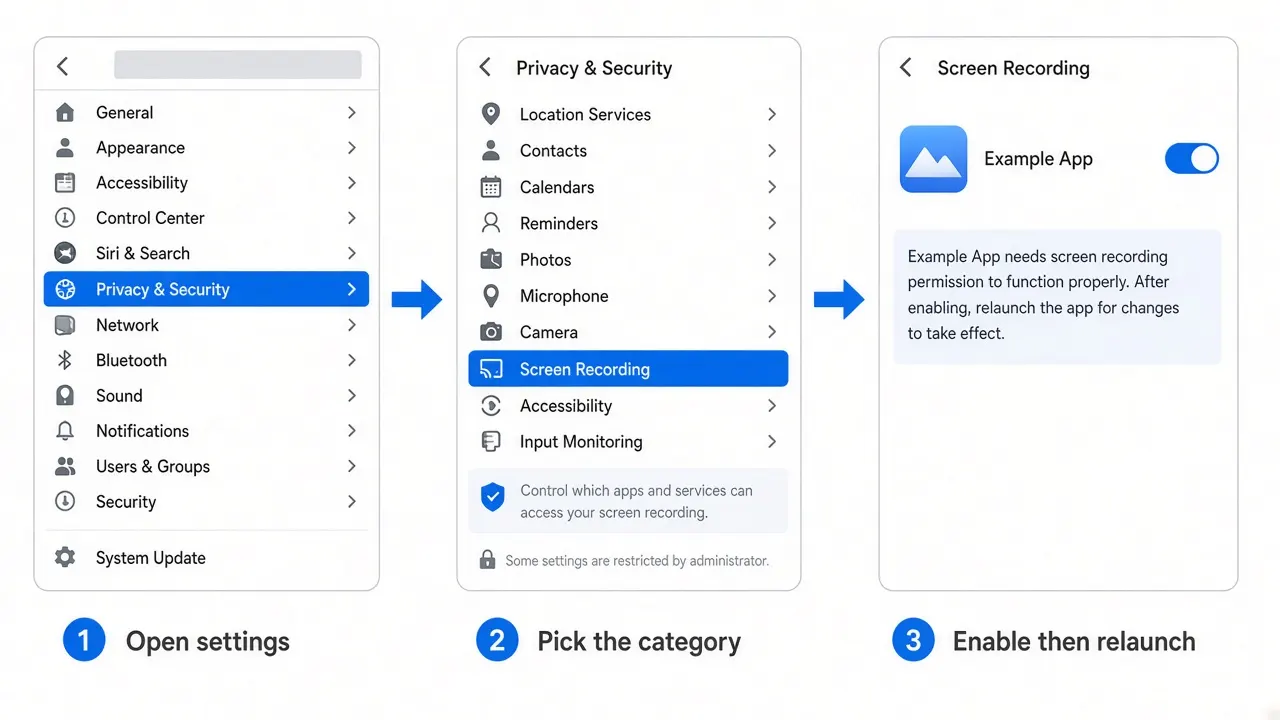
Screen Recording is the one that blocks capture entirely. Camera and microphone matter only when you use those sources. After Screen Recording is enabled, quit the app from the menu bar or Dock — closing a window is not always enough — then open it again. Apple’s privacy model often applies that grant on the next process start.
A longer walkthrough of the same System Settings path, written for any recorder, is inmacOS software guides.
First test recording
Record a small, boring target
Open TextEdit or a Notes window. Do not start with a two-monitor design file. Use the Record control described in the product’s own getting-started material.
Move, click, and say one sentence
Those three actions tell you whether video, cursor tracking, and the microphone are alive. Thirty seconds is enough.
Stop with a method you can repeat
Official stop methods: the recording control widget, the menu bar icon, Finish Recording on the Dock icon, or your global shortcut. Set the shortcut during onboarding if the app offers it, then find the same control later in settings.
Watch the editor before you export
Confirm the frame shows the window you thought you captured. Play the audio. Only then open Export. A first export can be 1080p MP4; you do not need 4K to prove the install worked.
First-run problems
Look in Applications. If it is only on the disk image, copy it and eject the image.
Re-open Privacy & Security → Screen Recording, confirm the switch, fully quit, relaunch. Details:troubleshooting.
Check the recording source, system volume, and Microphone privacy. Headphones avoid echo when both system audio and the mic are on.
Next: features explained.